
Downloading the Oracle AI Database 26ai On-Premises using AutoUpgrade
Last week, Oracle announced the General Availability of Oracle AI Database 26ai for Linux x86-64 on-premises platforms.
This has been waited for for a long time in the Oracle community!
Do you know that on 26ai, every time you choose a specific RU version, Oracle provides the Gold Image for that? Differently from previous versions, where you had to download the base image along with the desired RU version. This is great!!
I hope you know that you can use AutoUpgrade-Composer, helping you create the configuration files to download and create the new Oracle Home for 26ai.
OK, let’s do this!
In this blog post, I will show how to download the new version of the Oracle Database!
So, first we’ll access AutoUpgrade-Composer: https://autoupgrade-composer.com
The Download Mode is one of the execution modes for the Patch operation.
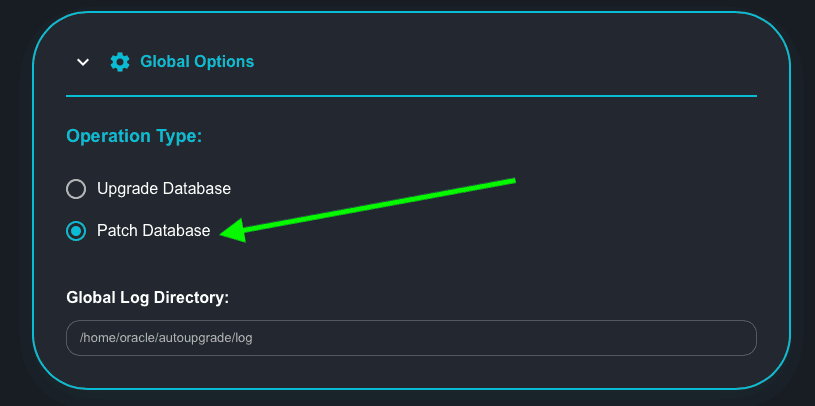
In the Global Options section, choose the option to Patch Database:
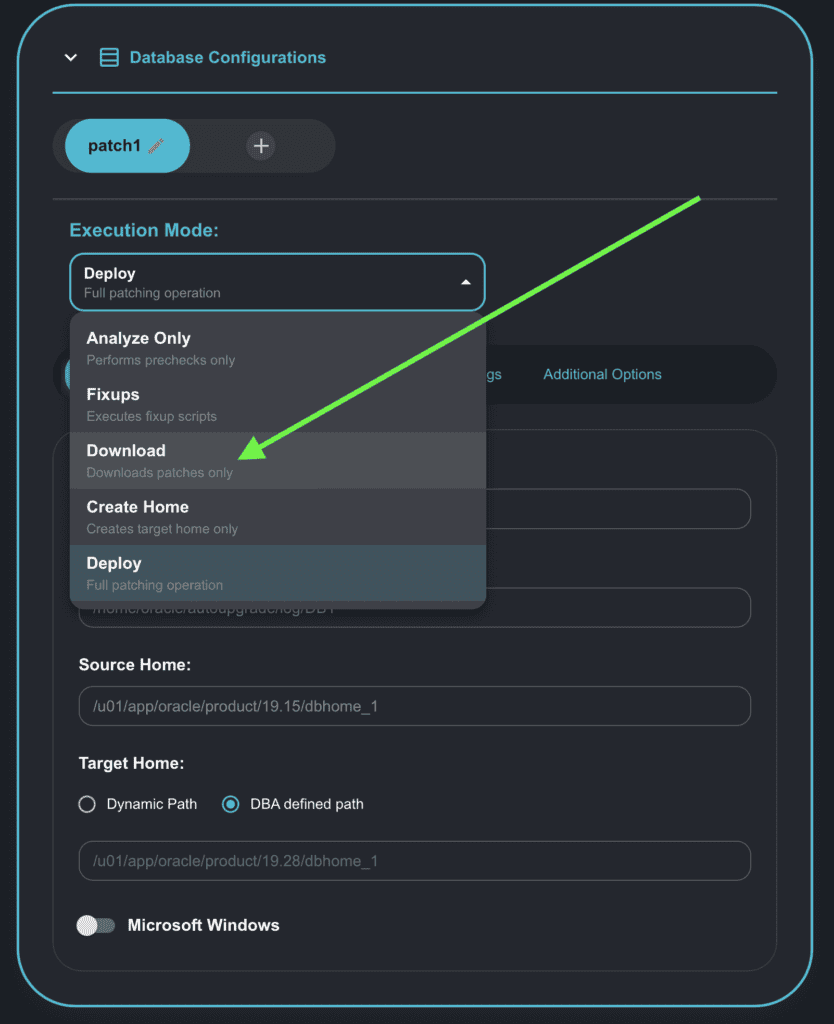
Now, click on the drop-down list for Execution Mode and choose the Download option:
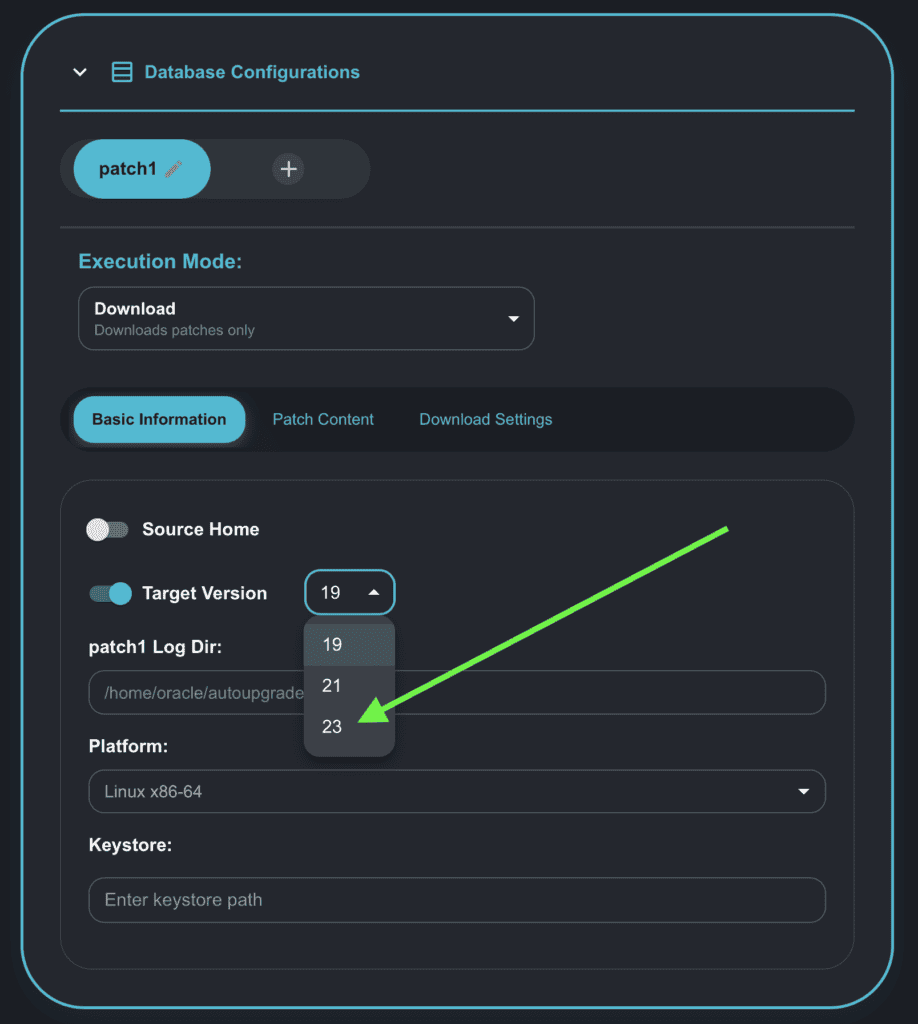
As we will be downloading the 26ai, select the target Version 23:
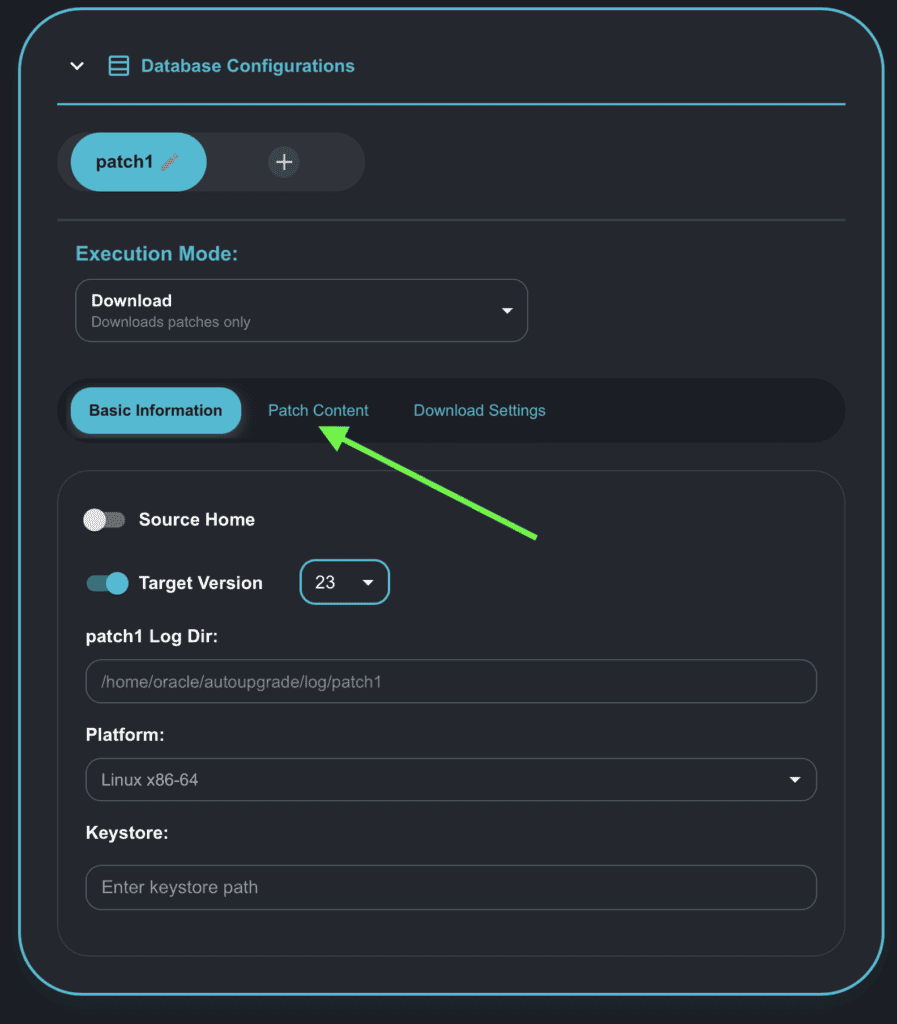
Now, click on the Patch Content tab to select which patches you would like to download:
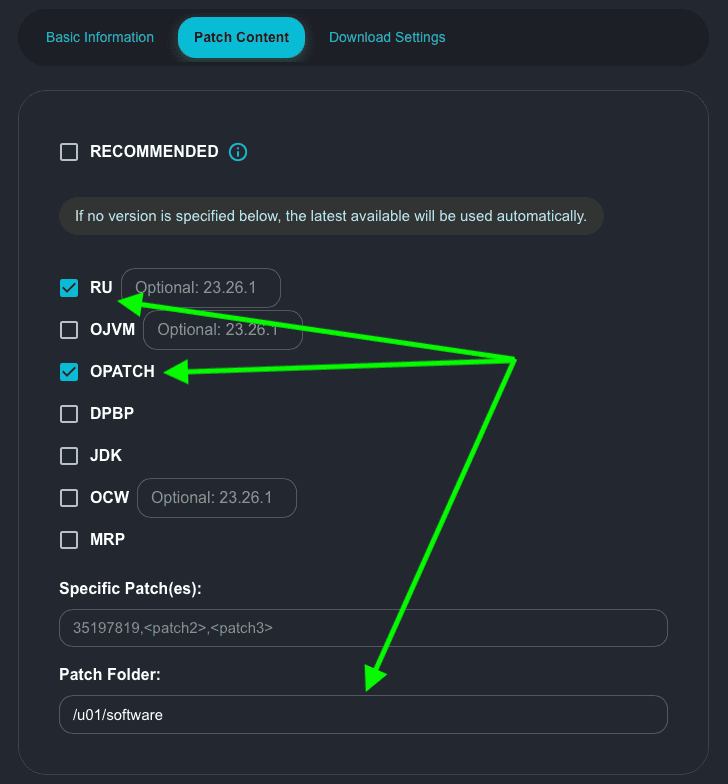
In the Patch Content tab, I’ve selected:
- RU
- OPATCH
When you select RU, AutoUpgrade will no longer download the RU itself, but a Gold Image for 23.26 with RU 1 (23.26.1).
You can select all the patches you want from the list, and also add one-off patches if you want.
In my example, I am choosing a folder to store my patches after they are downloaded: /u01/software. Make sure you select a folder where the user running AutoUpgrade has the right permissions to write (save) the files.
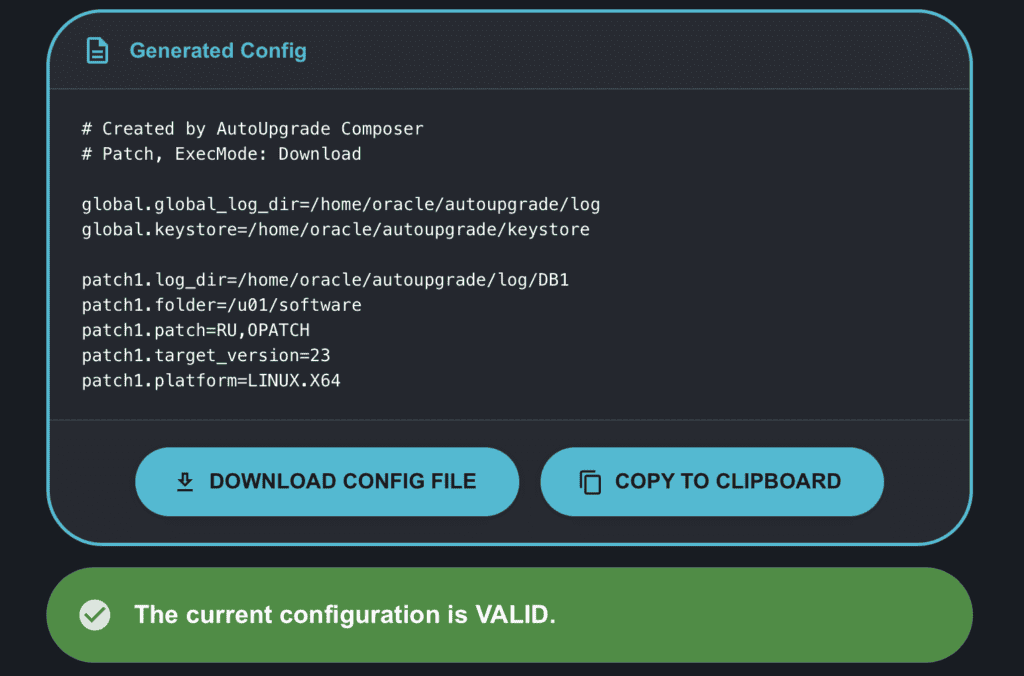
Now let’s check the generated config:
Continuing with the scroll, you have the instructions on how to run AutoUpgrade in Download mode:
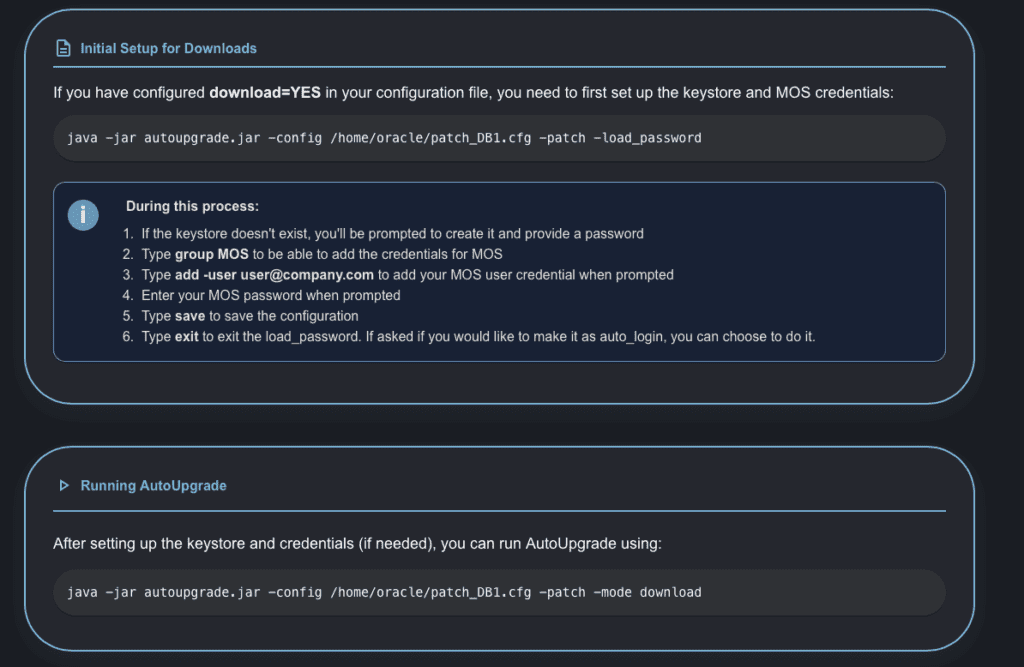
As I already downloaded patches before, I have the keystore with my MOS credentials on it.
Let’s proceed. First, I will check if the path I specified for the AutoUpgrade keystore is valid and if we have the files there:
[oracle@upgrade-lab ~]$ pwd
/home/oracle

[oracle@upgrade-lab ~]$ cd autoupgrade/keystore/

[oracle@upgrade-lab keystore]$ ls -l
-rw-------. 1 oracle oinstall 766 May 22 19:04 cwallet.sso
-rw-------. 1 oracle oinstall 0 May 22 19:04 cwallet.sso.lck
-rw-------. 1 oracle oinstall 654 May 22 19:04 ewallet.p12
-rw-------. 1 oracle oinstall 0 May 22 19:04 ewallet.p12.lck

[oracle@upgrade-lab keystore]$ pwd
/home/oracle/autoupgrade/keystore

Checking the contents of my patch folder:

[oracle@upgrade-lab ~]$ ls -l /u01/software
total 0
I saved my configuration file as down26ai.cfg:
# Created by AutoUpgrade Composer
# Patch, ExecMode: Download

global.global_log_dir=/home/oracle/autoupgrade/log
global.keystore=/home/oracle/autoupgrade/keystore

patch1.log_dir=/home/oracle/autoupgrade/log/DB1
patch1.folder=/home/oracle/autoupgrade/patches
patch1.patch=RU,OPATCH
patch1.target_version=23
patch1.platform=LINUX.X64
Let’s now run the AutoUpgrade tool in Download mode to download our patches:
[oracle@upgradelab ~]$ java -jar autoupgrade.jar -config down26ai.cfg -patch -mode download

AutoUpgrade Patching 25.6.251016 launched with default internal options
Processing config file ...
Loading AutoUpgrade Patching keystore
AutoUpgrade Patching keystore is loaded

Connected to MOS - Searching for specified patches

----------------------------------
Downloading files to /u01/software
----------------------------------
DATABASE RELEASE UPDATE 23.26.1.0.0 (GOLD IMAGE)
    File: p38743961_230000_Linux-x86-64.zip - VALIDATED

OPatch 12.2.0.1.49 for DB 23.0.0.0.0 (Jan 2026)
    File: p6880880_230000_Linux-x86-64.zip - VALIDATED
----------------------------------
Checking the contents of my patch folder again:
[oracle@upgradelab ~]$ ls -ltr /u01/software
-rw-r--r-- 1 oracle oinstall 2406029980 Jan 30 22:28 p38743961_230000_Linux-x86-64.zip
-rw-r--r-- 1 oracle oinstall 25263282 Jan 30 22:31 p6880880_230000_Linux-x86-64.zip
Hope it helps!
Peace!
Vinicius
Leave a comment