Hi everyone, hope you’re doing well.
This blog post is to announce that AutoUpgrade-Composer has been updated to v.26.2-4.
The Reason
The community asked for it
That’s right! The features I’ve introduced in the Composer (but that have existed in AutoUpgrade for a long time) were a request of the community and also from the Mike Dietrich’s team.
So, what was added?
Home Settings tab
This new tab is available in the following modes of the Composer in the Patch Section:
- Analyze
- Fixups
- Deploy
- Create Home
Please note that we already had some parameters for home_settings before this change, but those parameters were displayed in the Additional Options tab. Now, for the modes Analyze, Fixups and Deploy, I’ve moved the home_settings parameters from the Additional Options tab to the Home Settings tab.
For the Create Home mode, we had some parameters for home_settings in the Basic Information tab. Those are kept where they were. Only the new home_settings parameters I’ve added in the Composer are shown in the Home Settings tab.
You will notice that if you select your platform as Windows, some of the binary options are not shown, as they are not available on Windows.
You also may notice that if you enable RAC binary option, the Apply RU switch will be enabled by default and cannot be disabled.
Let’s take a look in the Home Settings tab:
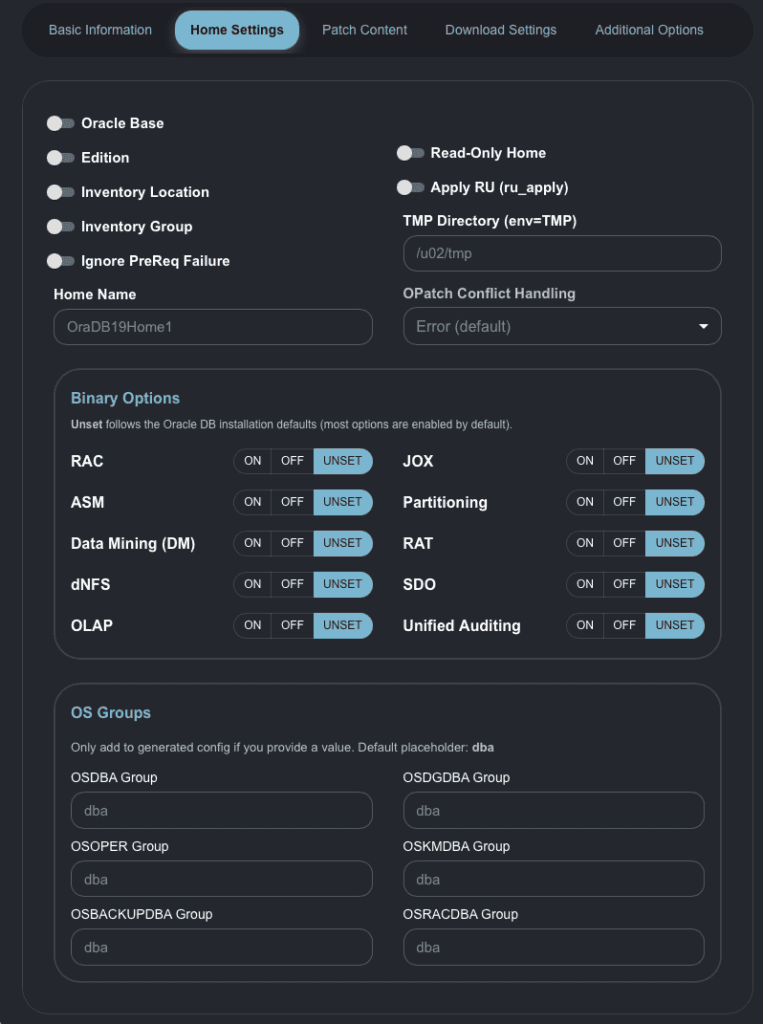
That’s the overall appearance of the tab.
Let’s now break down by parts.
In the first third of the page:
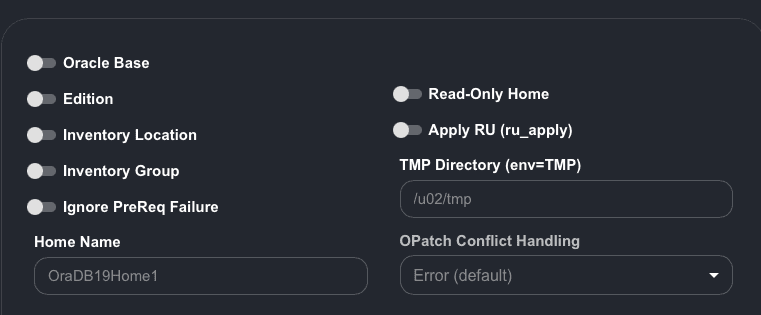
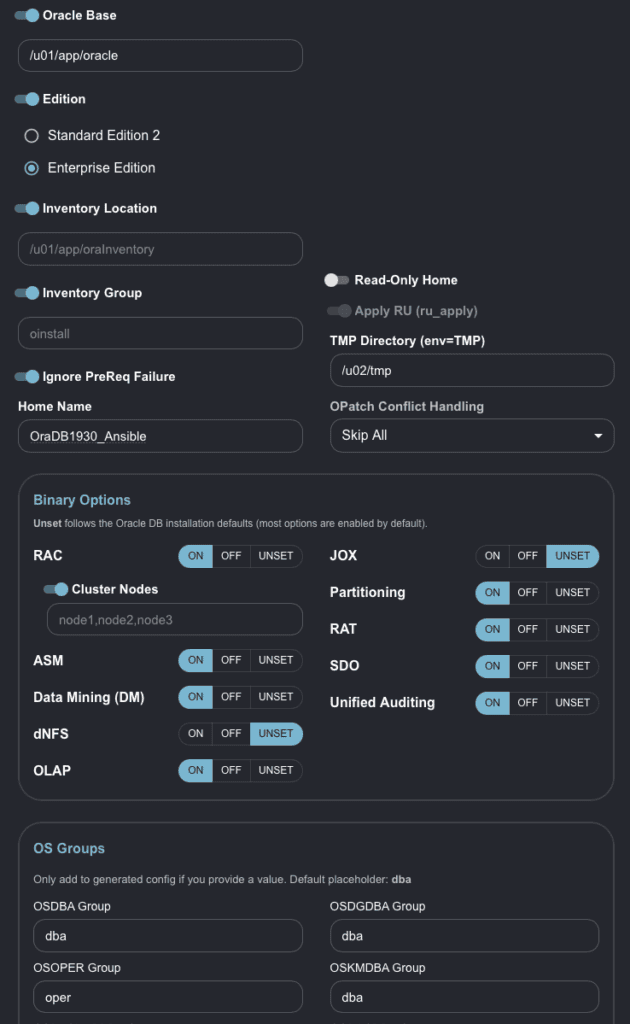
In the column on the left, most of the parameters already exist in Create Home mode (Oracle Base, Edition, Inventory Location, Inventory Group, Ignore PreReq Failure).
Mostly of the definitions below I’ve copied from the official Oracle documentation about AutoUpgrade.
We now have a new parameter:
- Home Name: this is the name that will be registered in the Central Inventory.
In the column on the left we have 4 new parameters added in the Composer:
- Read-Only Mode: A read-only Oracle home can simplify provisioning. In a read-only Oracle home, all the configuration data and log files reside outside of the read-only Oracle home. See your platform installation guide for more information about read-only Oracle homes.
- Apply RU: When the parameter is specified to YES on a platform other than Microsoft Windows, the RU being installed during a deploy operation is installed when runInstaller is run using the -applyRU command line option. When the parameter is specified to NO, the RU is then installed separately by running OPatch after the ORACLE_HOME has already been installed.
- TMP Directory (env): If the /tmp directory is mounted with “noexec” flag, this can prevent AutoUpgrade Patching from installing the Oracle software into the target home. One way to fix this, without remounting the /tmp directory, is to set TMP or TMPDIR environmental variables to a path with the appropriate privileges using patch1.env=TMP= in the configuration file.
- Patch Conflict Handling: This optional parameter enables us to configure a patching conflict policy that AutoUpgrade can apply when AutoUpgrade patching performs OPatch prerequisite checks. When we set a conflict policy using this parameter and AutoUpgrade detects conflicts among the patches specified by the patch parameter, AutoUpgrade applies the patch conflict policy to resolve the conflict. If the conflict is only between the one-off patches specified by the patch parameter, then, based on the home_settings.ignore_opatch_conflict parameter value, AutoUpgrade patching can automatically resolve conflicts between those patches and proceed to complete the patching, without stopping with a patch conflict error. The default is error. The values for home_settings.ignore_opatch_conflict are as follows:
- error (default) : When AutoUpgrade encounters patch conflicts, patching then stops. AutoUpgrade displays an error, indicating that there are conflicts among the specified patches.
- keep_first: When AutoUpgrade encounters patch conflicts, it prioritizes installing the one-off patches based on the order in which they are entered in the configuration file prefix.patch=RU,OPATCH,patch-number1,patch-number2,patch-number3… parameter entry. When a conflict is found, the one-off patches that come first in the patch parameter value sequence continue to be installed, even if these patches conflict with patches that are specified later in the parameter patch priority list. At the end of the patching operation, AutoUpgrade reports the patches that could not be applied.
- skip_all : AutoUpgrade patching automatically skips installing all conflicted one-offs patches and proceeds to install patches that do not have conflicts.
Let’s now explore the part of the middle of the screen, the binary options:
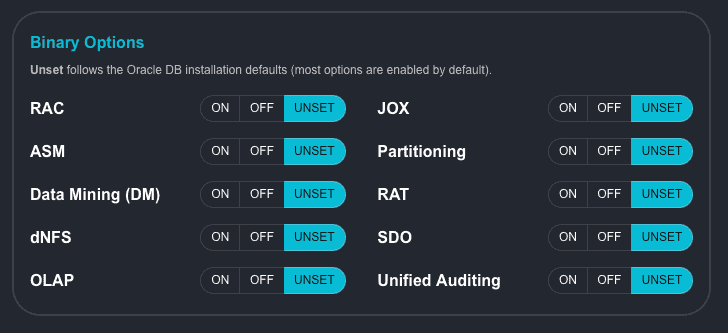
On this part we have the option to choose AutoUpgrade to enable or disable a specific option of the Oracle Database software. You can notice that we have three states for each option:
- ON: AutoUpgrade will enable the option when creating the Oracle Home. A corresponding line will be added to the generated config (right side of the screen).
- OFF: AutoUpgrade will disable the option when creating the Oracle Home. A corresponding line will be added to the generated config (right side of the screen).
- UNSET: the default set for AutoUpgrade. When this is selected, AutoUpgrade will follow the default options for the runInstaller. For example, OLAP will be enabled (as it is enabled by default when you use runInstaller and not select to disable during the installation). No line will be added to the generated config.
Let’s see the last third of the page:
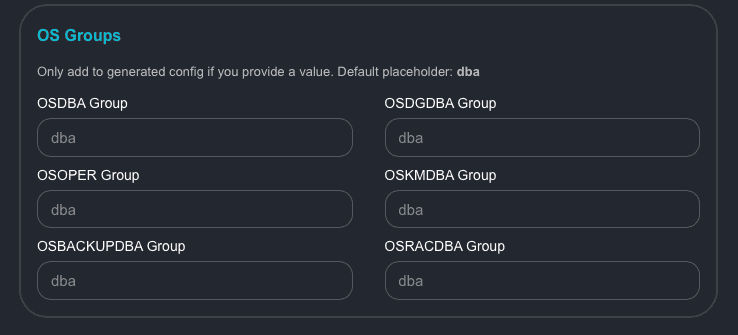
This is a really old friend! 🙂 You can define the OS groups for your installation.
Let’s now select Windows as platform and take a look in how the Home Settings tab will look:
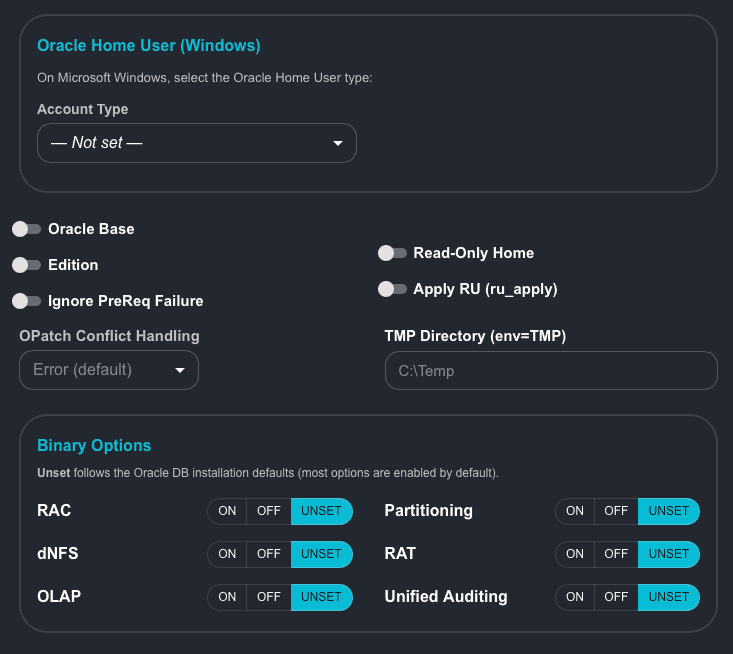
You can notice that there is one additional parameter:
- Oracle Home User: To use this option, the Windows user account (nonadministrative user) must already exist before run AutoUpgrade. AutoUpgrade cannot create these users. On Microsoft Windows, we can choose one of the following as the Oracle Home User:
- Windows Virtual Account (VIRTUAL)
- Windows Built-in Account (BUILT_IN)
- Standard Windows user account (not an administrator account)
- Domain user account (USER:domain\user; for example, USER:CORP\jdoe)
When we use USER, specify the user name after a colon. If we use a domain user account, then use the format USER:domain\user.
If we use a Built-in Account, then we do not need to enter a user name or password during installation or administration. If we use a Windows user account as the Oracle Home User, enter only the user name. AutoUpgrade does not support passwords for Windows users when you create the Oracle home.
We can use a virtual account as the Oracle Home User for Oracle Database single-instance installations. Virtual accounts do not require a user name or password during installation or administration.
You can notice that the binary options are also reduced. This is because some of the options are not available on Windows. As we can’t change the OS groups on Windows, we don’t have the option to set the OS groups for DBA, OPER, etc.
For the Oracle Home User, as explained above (thanks to the AutoUpgrade official doc!), here is how it will look in the Composer:
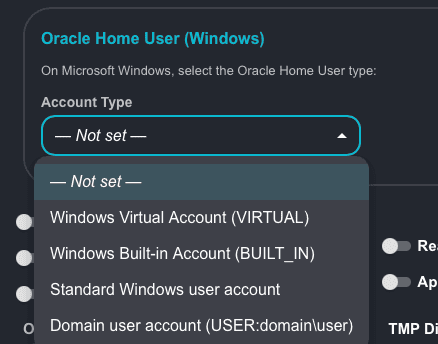
Let’s choose Domain user account and see how it will look:
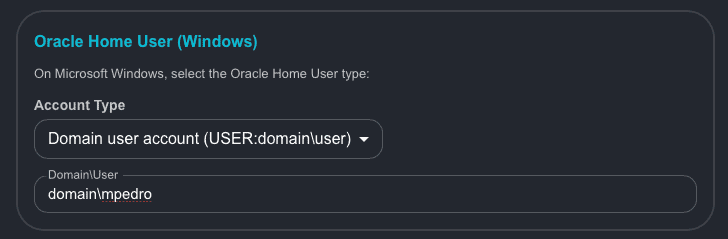
In my example, I chose domain\mpedro.
Let’s see how this will be displayed in the Generated Config:
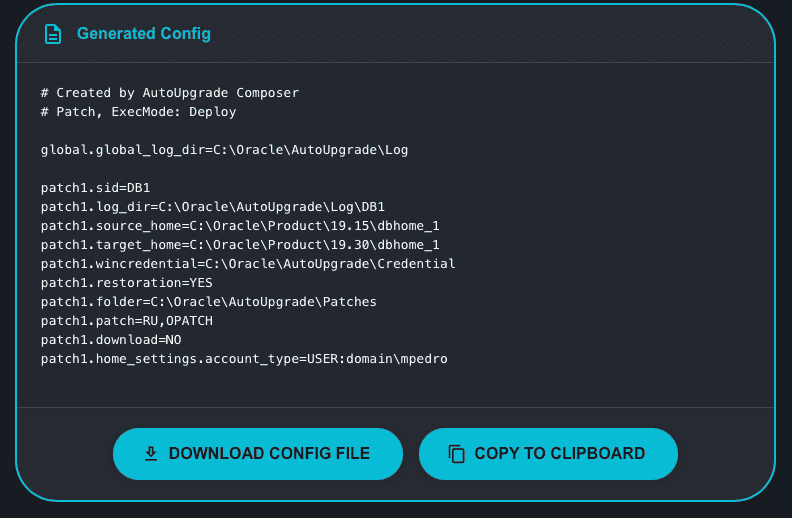
You can see above the last parameter on the screen.
Now, let’s return to “non-Windows” platform and choose all the options in the Home Settings tab:
Let’s see how this will be displayed in the Generated Config:
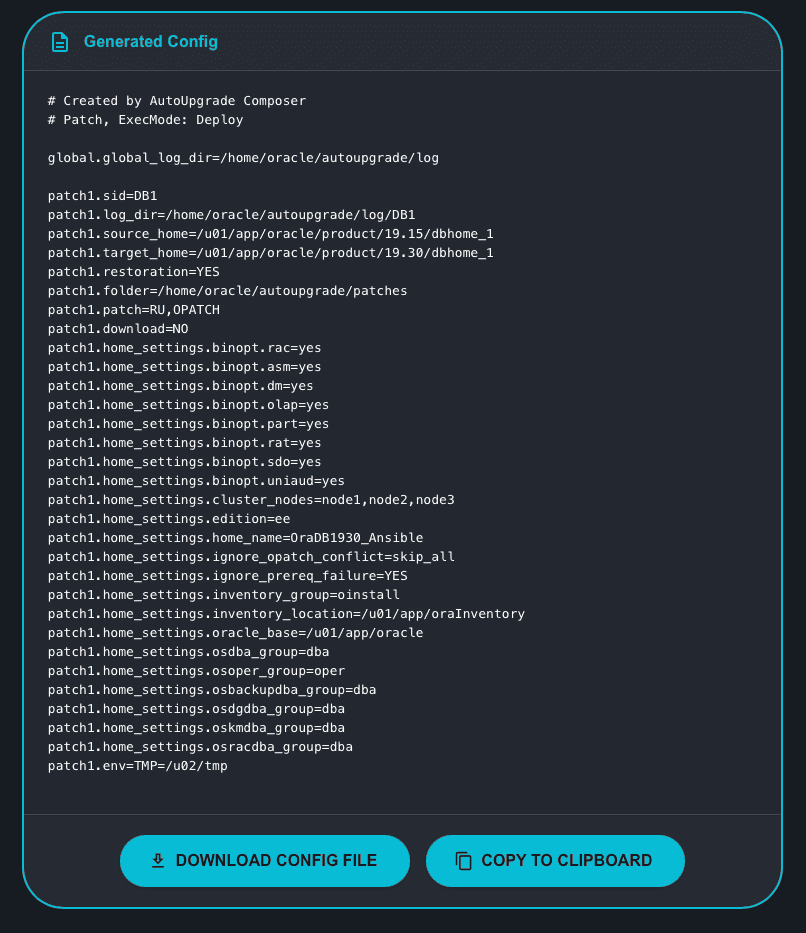
Wow! That’s a huge configuration file! 😀
Hope it helps!
Peace!
Vinicius
