
AutoUpgrade-Composer: Updated to v.26.2-7 (and v.26.2-8) – Validate Config, Unplug-Plug Support, Enhancements
Hi everyone, hope you’re doing well.
This blog post is to announce that AutoUpgrade Composer has been updated to v.26.2-7, and also to v.26.2-8.
I’ll list all the changes implemented in these versions below.
Let’s start with v.26.2-7.
Load/Validate Configuration
In previous versions of AutoUpgrade Composer we had the capability to load a configuration file generated only by the AutoUpgrade Composer itself.
While discussing with Mike Dietrich about the AutoUpgrade Composer a couple of months ago, he mentioned that it would be great to have the Composer validate a configuration file.
I confess that I loved the idea, but I was (and still am) struggling with how to achieve that.
For now, I tried to do some “reverse engineering” in the AutoUpgrade (autoupgrade.jar) and also analyzed all the parameters that can be used for AutoUpgrade, according to the official documentation. Hopefully the documentation is up-to-date. 🙂
Anyway, I kindly request your help to use the Validate Configuration and let me know in case of any issues or if Composer is missing anything.
When using this feature, the Composer will try to suggest minor fixes in the config in case the parameter looks like a typo. But please be advised, the main feature is to validate the config and not suggest fixes.
Before showing how this feature works, let’s take a look at this part of Mike Dietrich’s post, where he was very kind (as usual) talking about the Composer:
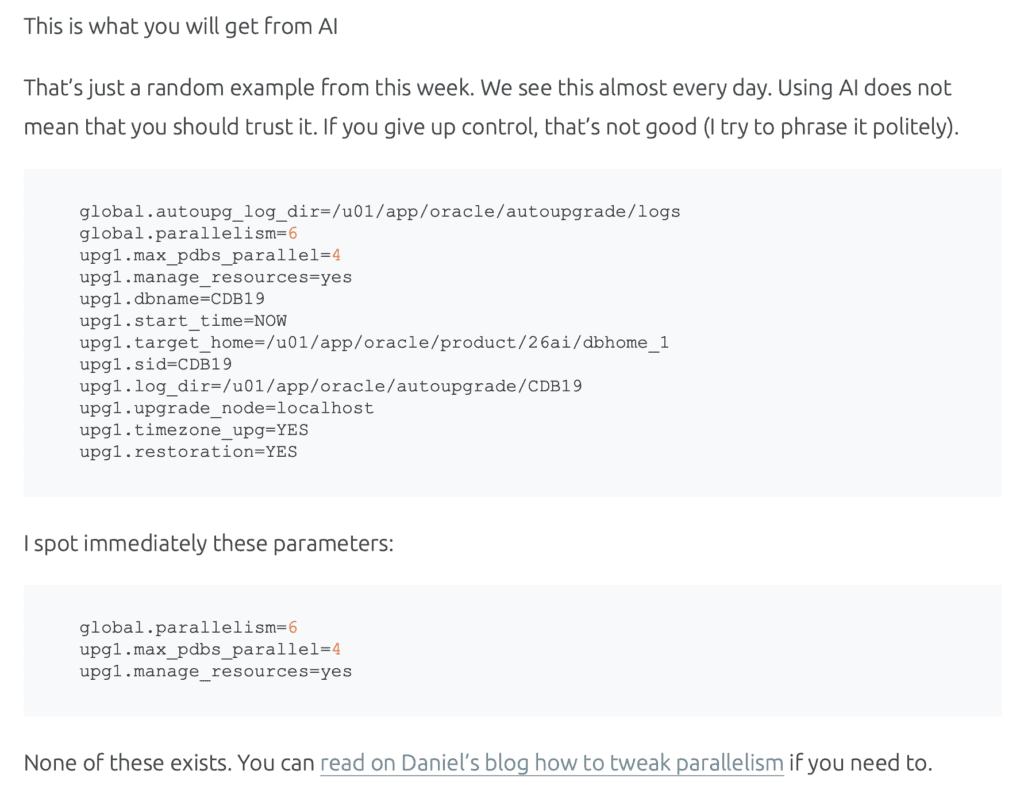
See? This is a configuration file he received from some guys where they used AI tools to generate it. These parameters do not exist!
OK, let’s start playing with this feature!
First, you need to access the AutoUpgrade Composer:
https://autoupgrade-composer.com
It is pretty easy to use this feature, you just need to click on the button Load / Validate Configuration:
Example 1:
Taking a quick look, what do we have wrong here?
global.autoupg_log_dir=/u01/app/oracle/autoupgrade/logs
global.parallelism=6
upg1.max_pdbs_parallel=4
upg1.manage_resources=yes
upg1.dbname=CDB19
upg1.start_time=NOW
upg1.target_home=/u01/app/oracle/product/26ai/dbhome_1
upg1.sid=CDB19
upg1.log_dir=/u01/app/oracle/autoupgrade/CDB19
upg1.upgrade_node=localhost
upg1.timezone_upg=NO
upg1.restoration=YES
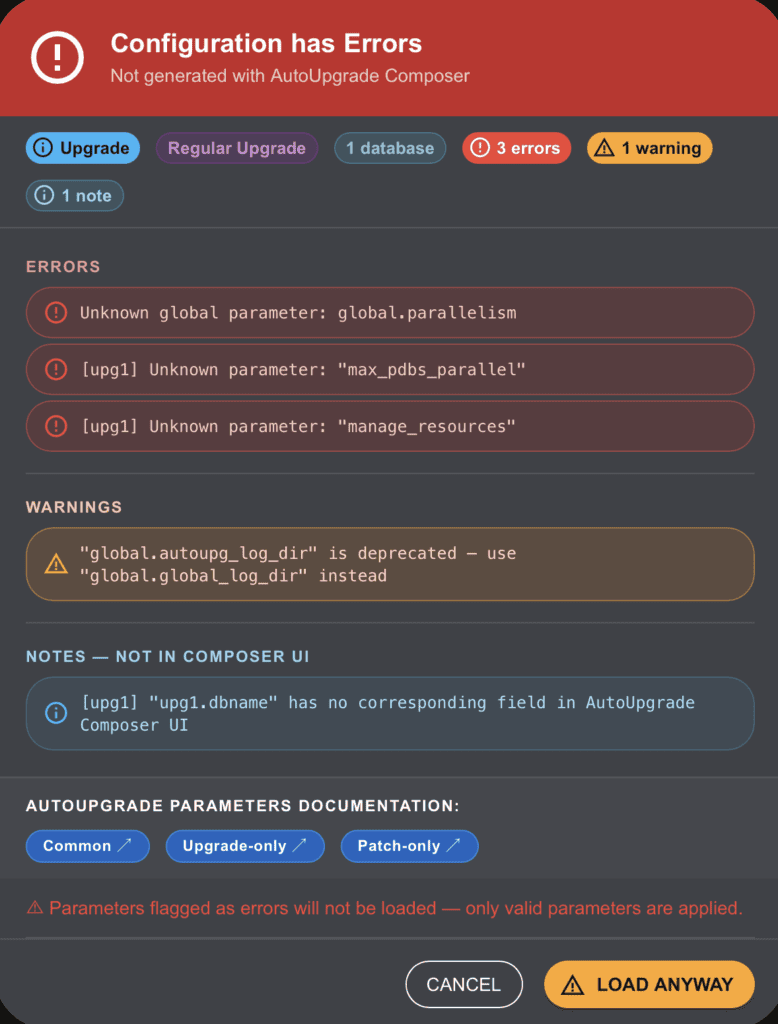
Let’s validate it using the feature:
Cool, isn’t it?
Let’s break down what we see on the screen:
In the header/first part, the Validator is showing that the Config File has Errors. It’s also showing that this file was not generated using AutoUpgrade Composer.
Next, it’s showing a summary about the configuration file:
- Upgrade
- Regular Upgrade
- 1 Database
- 3 Errors
- 1 Warning
- 1 Note
Then we have the errors section:
ERRORS
- Unknown global parameter: global.parallelism
- [upg1] Unknown parameter: “max_pdbs_parallel”
- [upg1] Unknown parameter: “manage_resources”
Then, the warning section:
WARNINGS
- “global.autoupg_log_dir” is deprecated — use “global.global_log_dir” instead
Then, the notes section (in this part, it’s showing that a specific parameter is valid, but there is no corresponding field in the AutoUpgrade Composer interface. Please note that if you load the file, this parameter be will loaded, as it is valid, but you won’t have the option in the screen to change it):
NOTES — NOT IN COMPOSER UI
- [upg1] “upg1.dbname” has no corresponding field in AutoUpgrade Composer UI
We have then 3 buttons that points to the AutoUpgrade Parameters in the official documentation.
In the last part, we have a small note mentioning that if you choose the file anyway, the parameters flagged as errors will not be loaded.
Then, you can choose to cancel or to load the file anyway. Let’s try to load anyway:
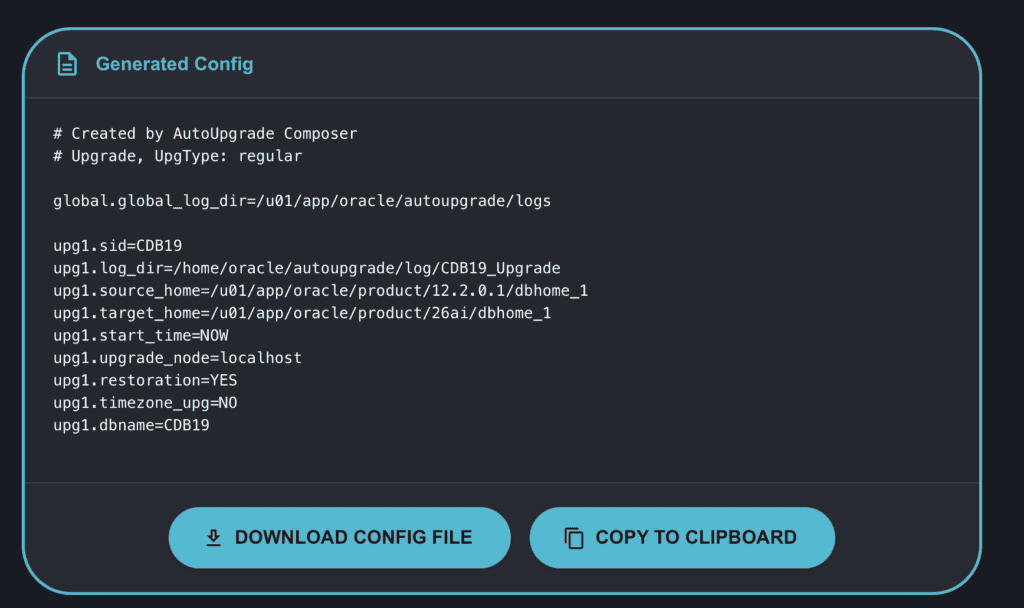
As you can see, we have the parameter DBNAME. You will also notice that now in the header, we have the lines:
# Created by AutoUpgrade Composer
# Upgrade, UpgType: regular
Why?
Because any changes you make from now on will be done using the Composer. Also, when you loaded the file, the Composer removed the parameters with errors, so, the Composer indeed changed/fixed the file for you.
Let’s see the next example.
Example 2:
Taking a quick look, what do we have wrong here?
global.global_log_dir=/home/oracle/autoupgrade/upgrade26
upg1.source_home=/u01/app/oracle/product/19
upg1.target_home=/u01/app/oracle/product/26
upg1.sid=CDB19
upg1.pdbs=SALES
upg1.target_cdb=CDB26
upg1.source_dblink.SALES=CLONEPDB 1800
upg1.target_pdb_name.SALES=NEWSALES
upg1.start_time=19/01/2038 03:14:07
upg1.parallel_pdb_creation_clause.SALES=2
upg1.target_pdb_copy_option.SALES=file_name_convert=NONE
upg1.drop_dblink=yes
Let’s validate it using the feature:
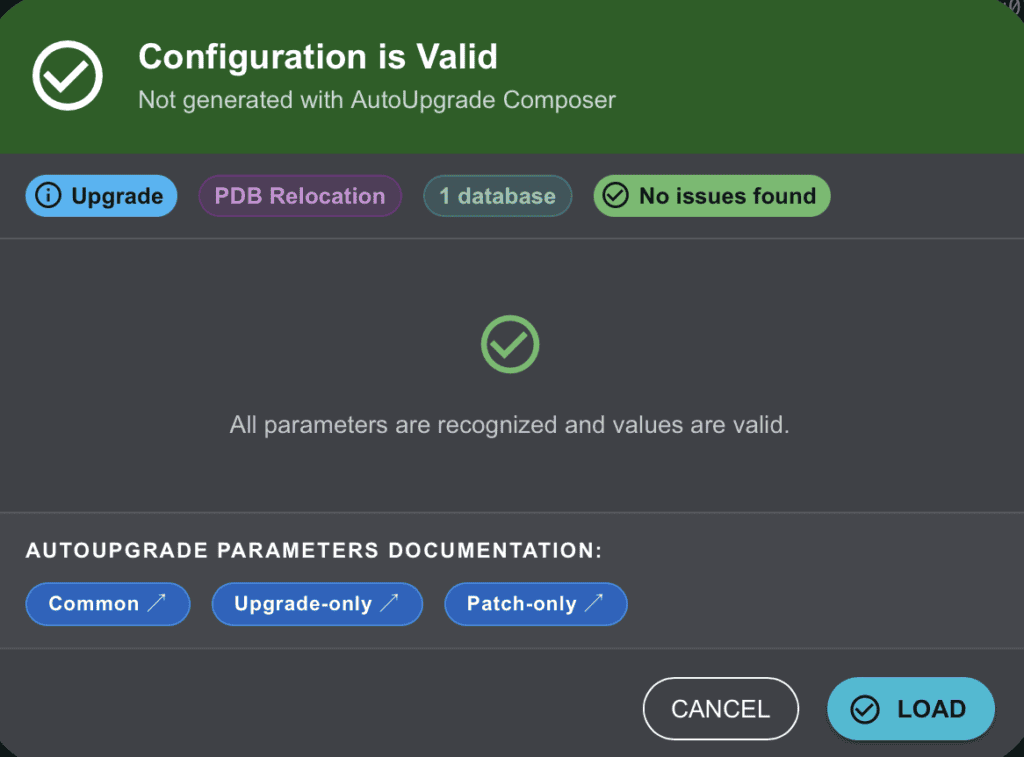
Great! File is valid! See, file was not generated by the Composer. But the Composer validated the file. You can load it if you want:
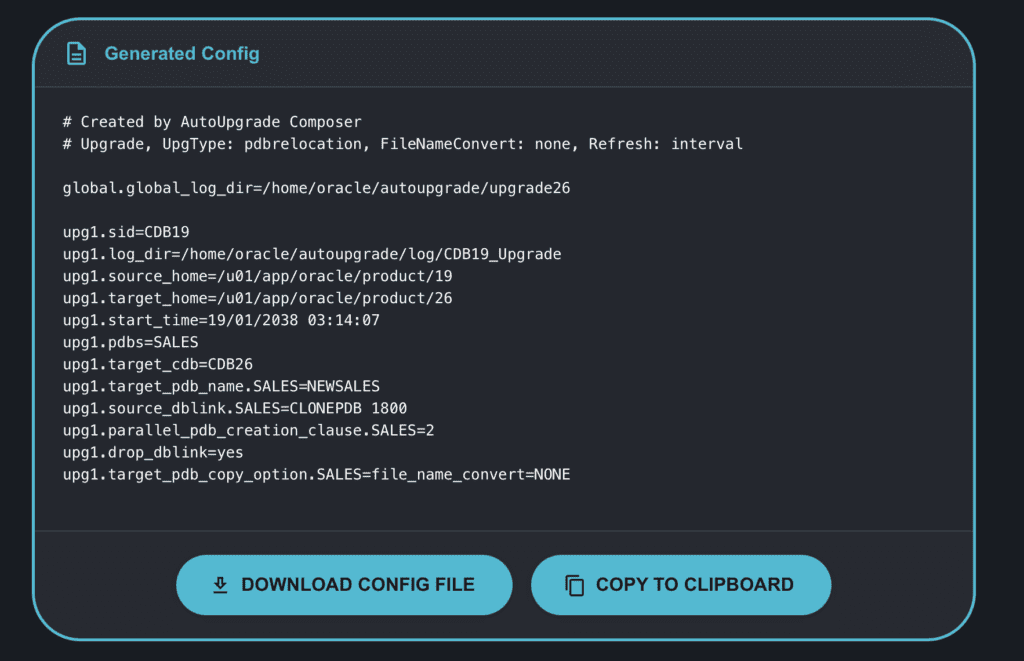
Example 3:
Taking a quick look, what do we have wrong here?
global.autoupg_log_dir=/u01/app/oracle/autoupgrade/logs
upg1.old_name=CDB19
upg1.start_time=NOW
upg1.target_home=/u01/app/oracle/product/26ai/dbhome_1
upg1.sid=CDB19
upg1.log_dir=/u01/app/oracle/autoupgrade/CDB19
upg1.upgrade_node=localhost
upg1.timezone_upg=YES
upg1.restoration=YES
Let’s validate it using the feature:
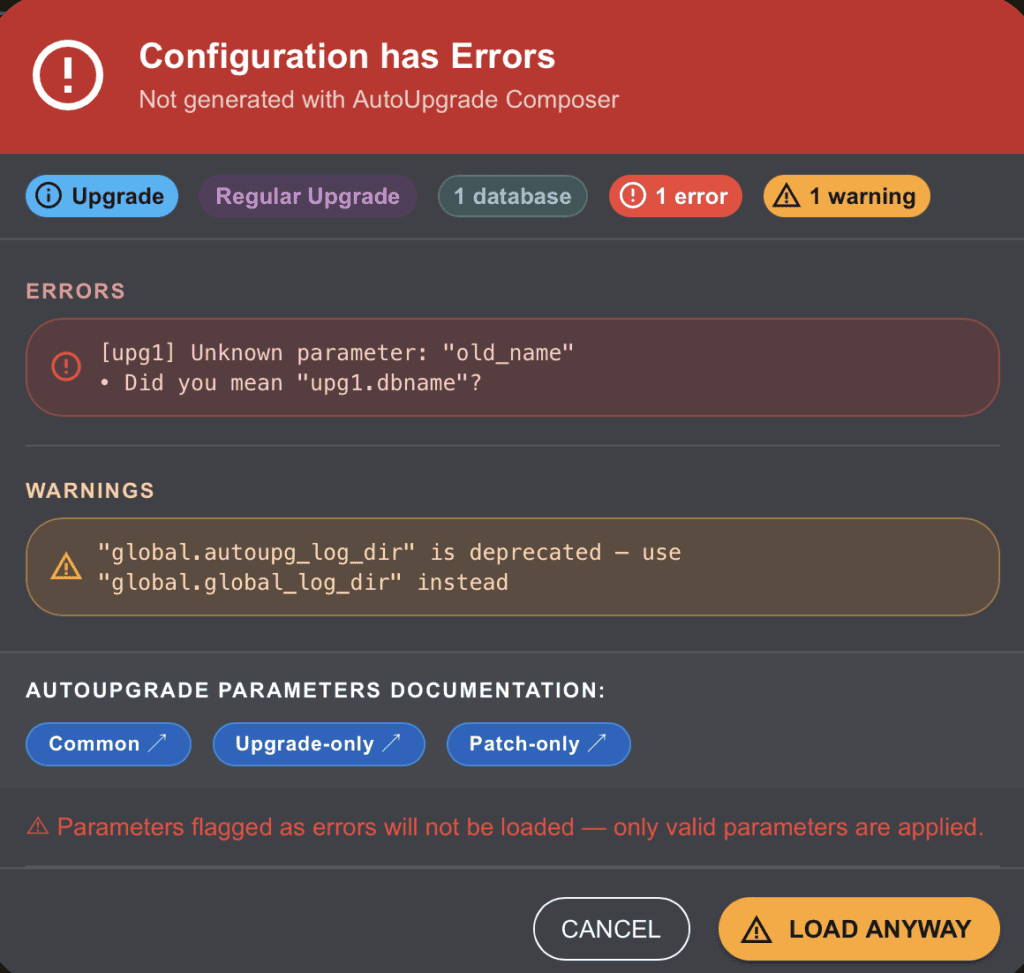
Humm, looks like we have a typo. 🙂 We have a parameter called OLD_NAME, which looks like is wrong.
If you choose to load anyway, this parameter will not be loaded.
Let’s jump to another example.
Example 4:
# Created by AutoUpgrade Composer
# Patch, ExecMode: Deploy
global.global_log_dir=/home/oracle/autoupgrade/logpatch1.sid=DB1
patch1.log_dir=/home/oracle/autoupgrade/log/DB1
patch1.source_home=/u01/app/oracle/product/19.15/dbhome_1
patch1.target_home=/u01/app/oracle/product/19.30/dbhome_1
patch1.restoration=YES
patch1.folder=/home/oracle/autoupgrade/patches
patch1.patch=RU,OPATCH
patch1.download=NO
Let’s validate it:
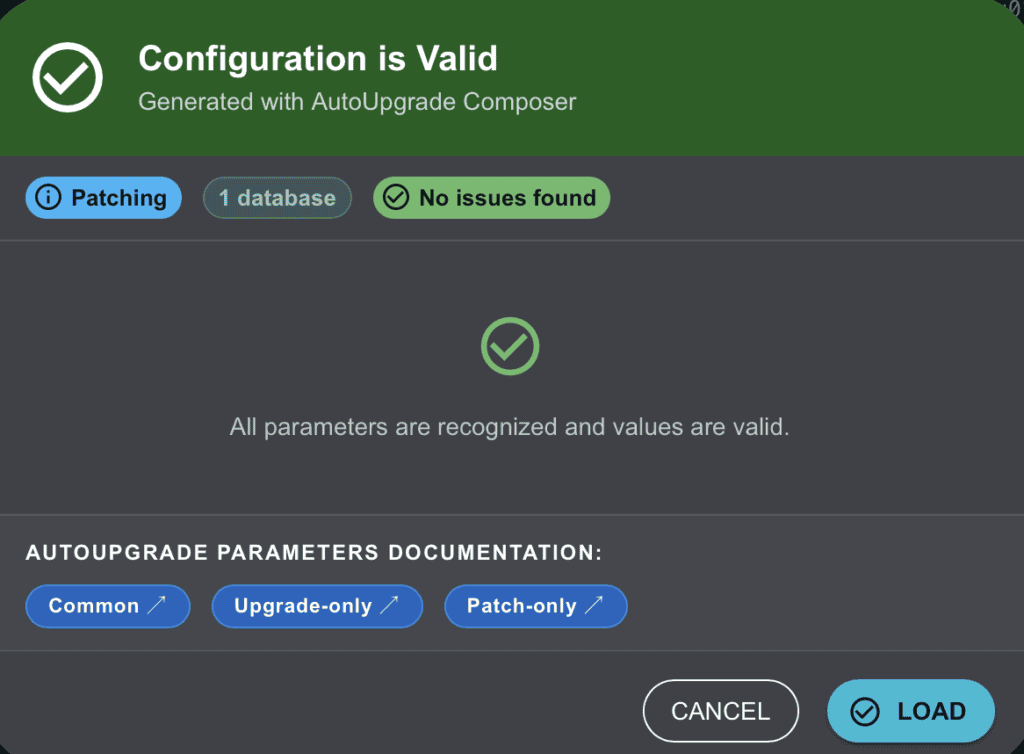
Well, this was supposed to be valid anyway as it was generated by the Composer previously! 🙂
Let’s see one more example.
Example 5:
global.global_log_dir=/home/oracle/autoupgrade/log
patch1.sid=DB1
patch1.log_dir=/home/oracle/autoupgrade/log/DB1
patch1.source_home=/u01/app/oracle/product/19.15/dbhome_1
patch1.target_home=/u01/app/oracle/product/19.30/dbhome_1
patch1.restoration=YES
patch1.drop_grp_after_patching=YES
patch1.folder=/home/oracle/autoupgrade/patches
patch1.patch=RU,OPATCH
patch1.download=NO
patch1.home_settings.binopt.rac=yes
patch1.home_settings.binopt.asm=yes
patch1.home_settings.binopt.dnfs=yes
patch1.home_settings.binopt.dm=yes
patch1.home_settings.binopt.rat=yes
patch1.home_settings.binopt.sdo=yes
patch1.home_settings.binopt.uniaud=yes
patch1.home_settings.edition=ee
patch1.home_settings.inventory_group=oinstall
patch1.home_settings.inventory_location=/u01/app/oraInventory
patch1.home_settings.oracle_base=/u01/app/oracle
patch1.start_time=+1h
patch1.after_action.deploy=/user/path/script.sh Y
Do you see any issues?
Let’s validate it:
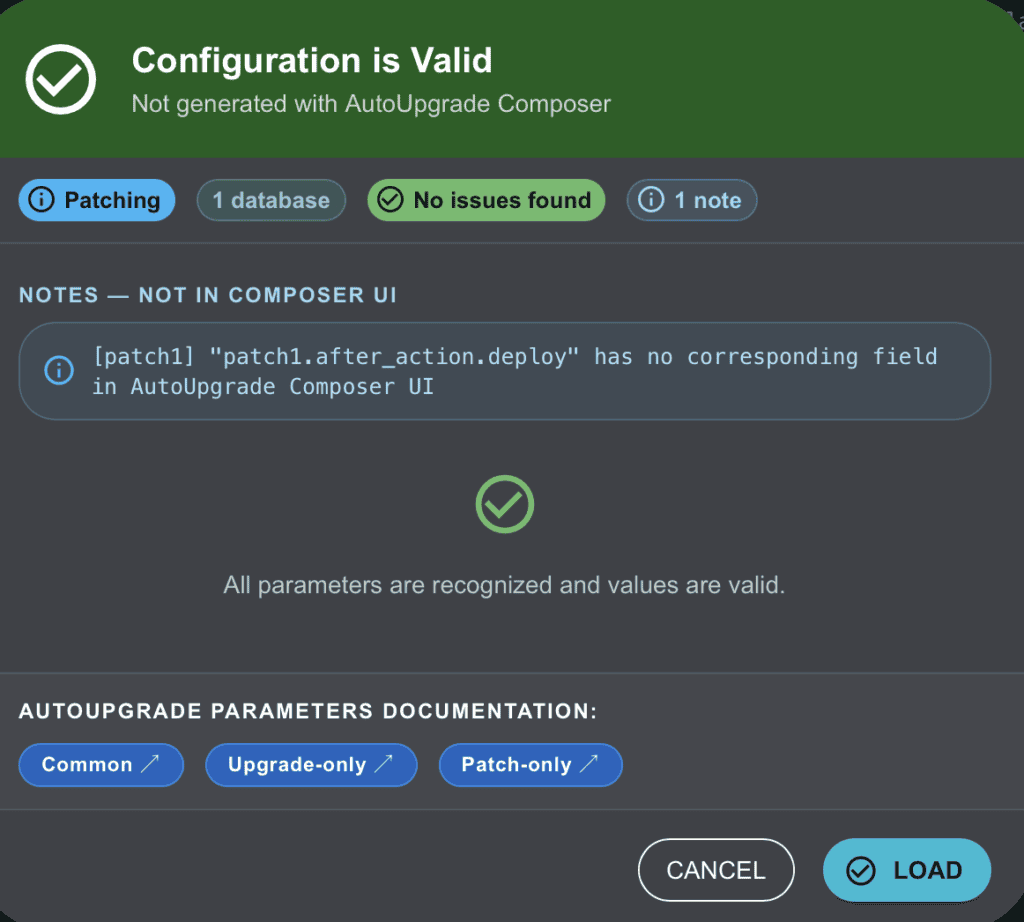
The file is valid, but we don’t have the corresponding field for after_action.deploy in the Composer.
Let’s see how the load file will look like:
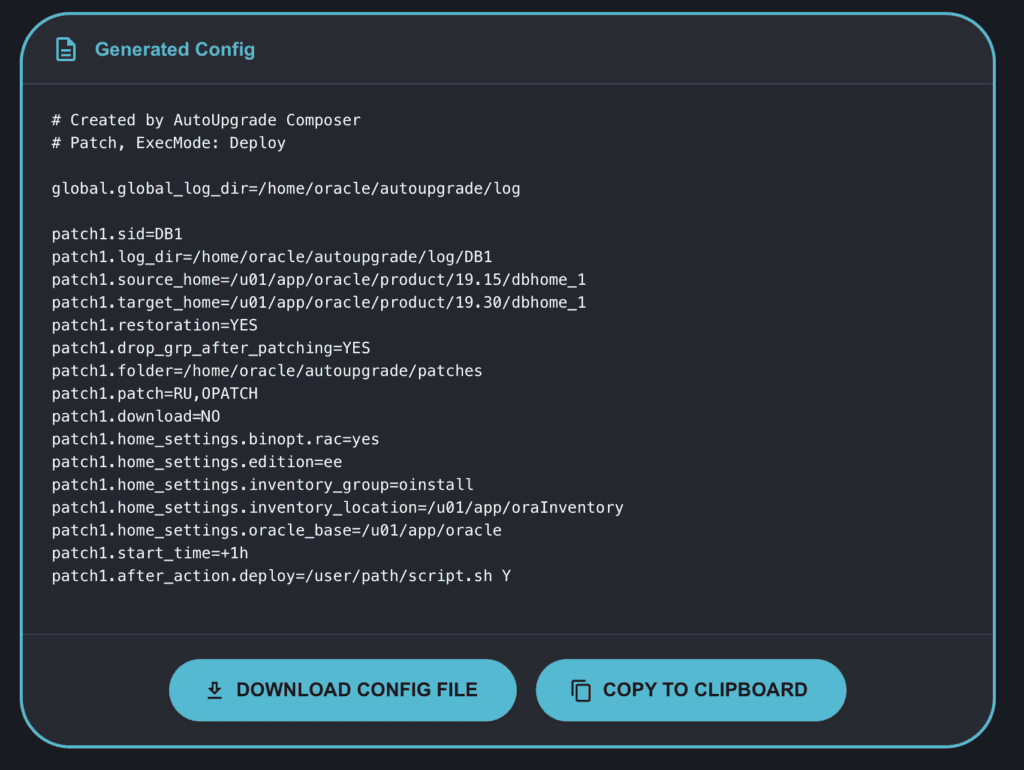
You can see that the file was loaded and even the parameter that we don’t have in the Composer, it is present in the configuration.
Let’s now talk about feature introduced in the Composer.
Unplug-Plug Support
In the previous versions of the Composer, those are the “supported” upgraded methods I have added in the tool:
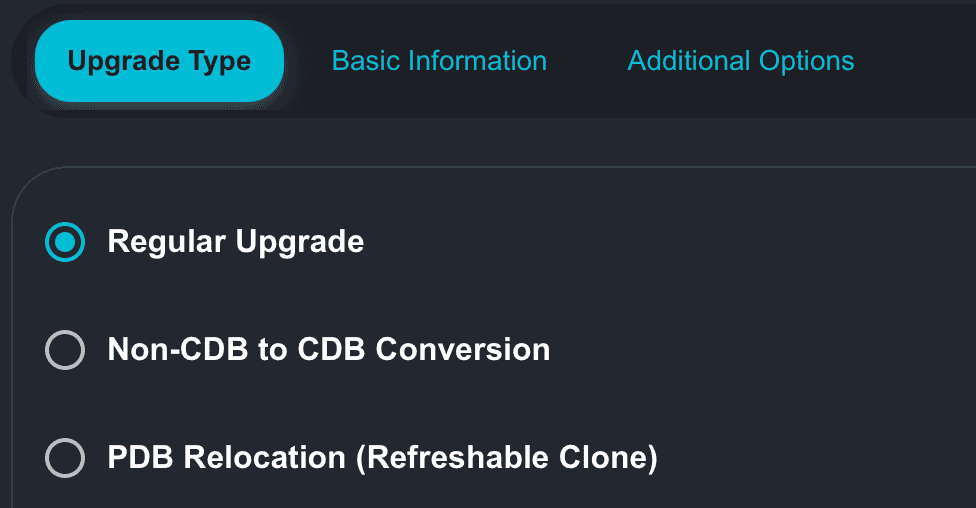
Then Daniel, asked Alex Zaballa if I was planning to add the support for Unplug-Plug. Well, if he asked, of course I worked to implement it!
So, here we go:
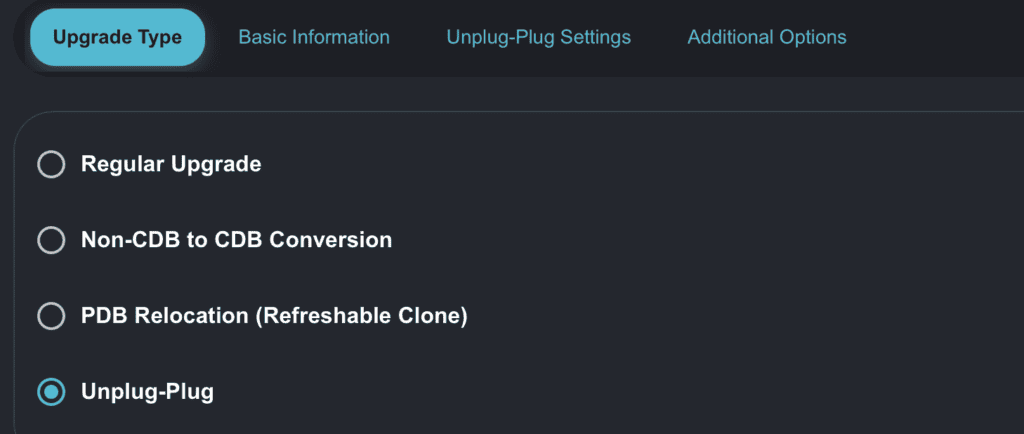
If you choose Unplug-Plug, you will notice that we have almost the same tabs, except by the tab Unplug-Plug Settings:
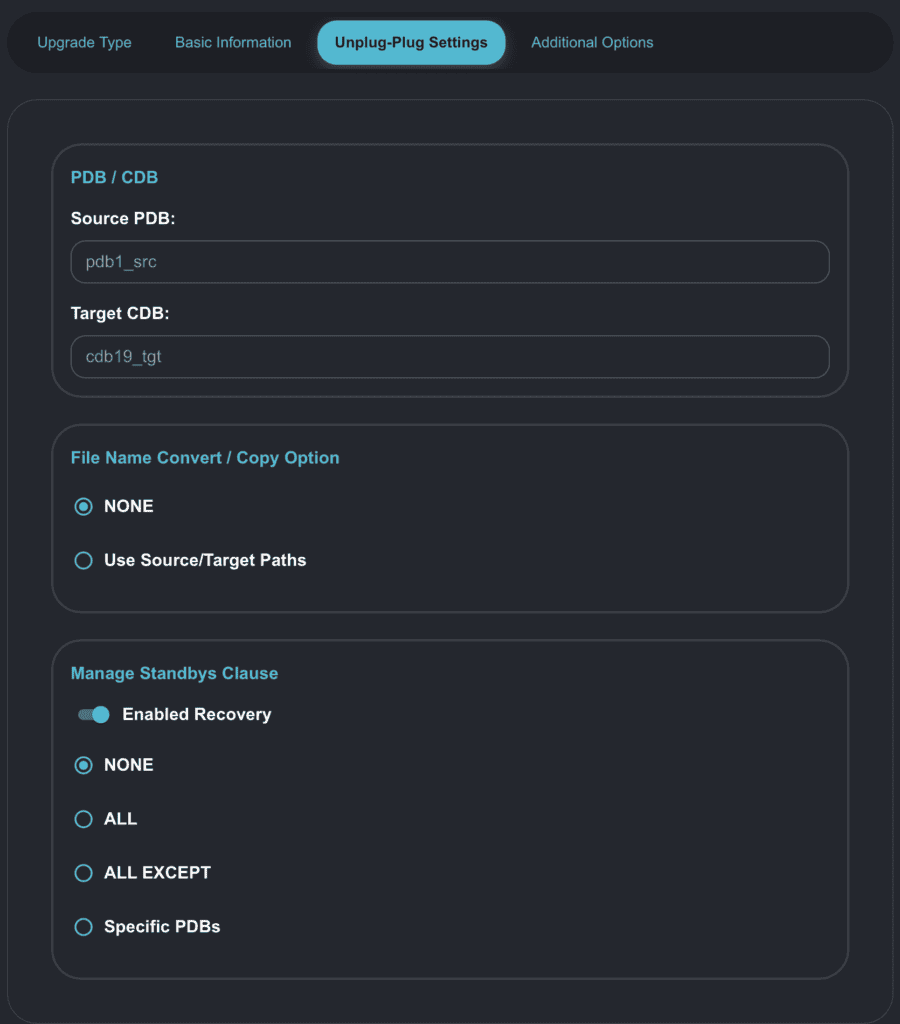
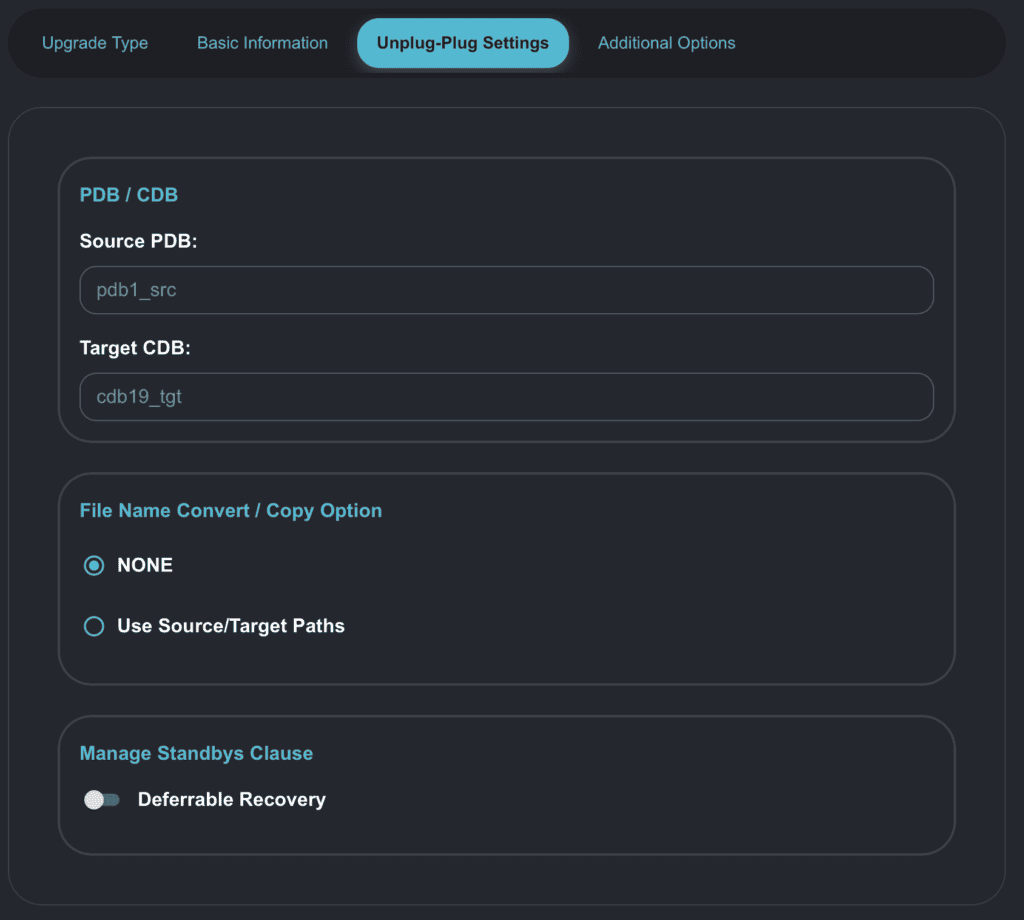
In the last part you will notice the Manage Standbys Clause section. In the screenshot above you can see we have this option selected/enabled. If we disable it, it will change to Deferrable Recovery:
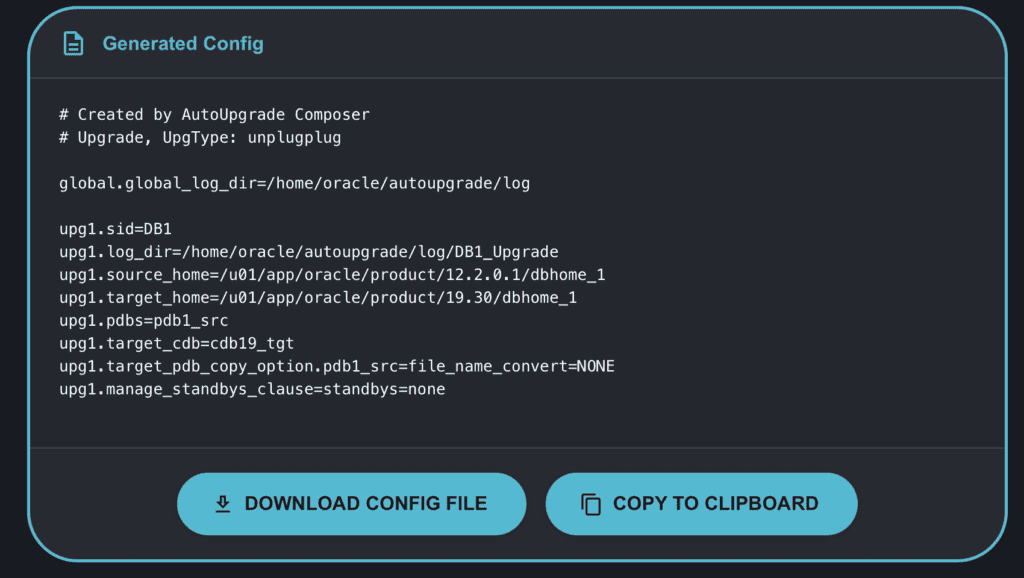
If you keep the Enabled Recovery, this is how the Config File will look like:
You can read from Daniel’s blog two great posts about the Unplug-Plug support:
Upgrade Oracle Database 19c PDB to 26ai with Data Guard and Restoring Data Files (Deferred Recovery)
Upgrade Oracle Database PDB 19c to 26ai with Data Guard and Re-using Data Files (Enabled Recovery)
PDB Refreshable Clone: Parallel PDB Creation and Drop DB Link
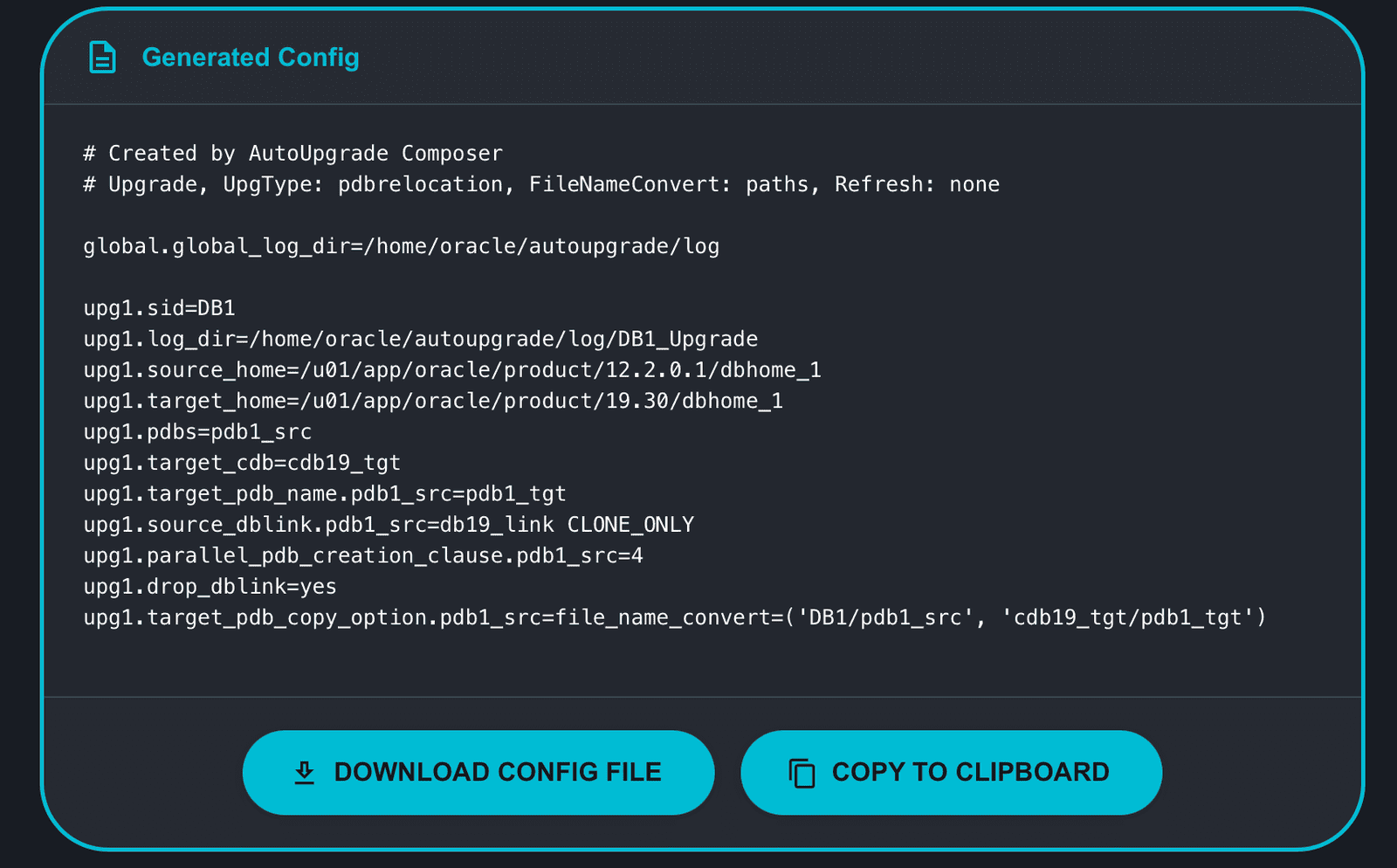
I also added two useful parameters in the PDB Refreshable Clone Settings:
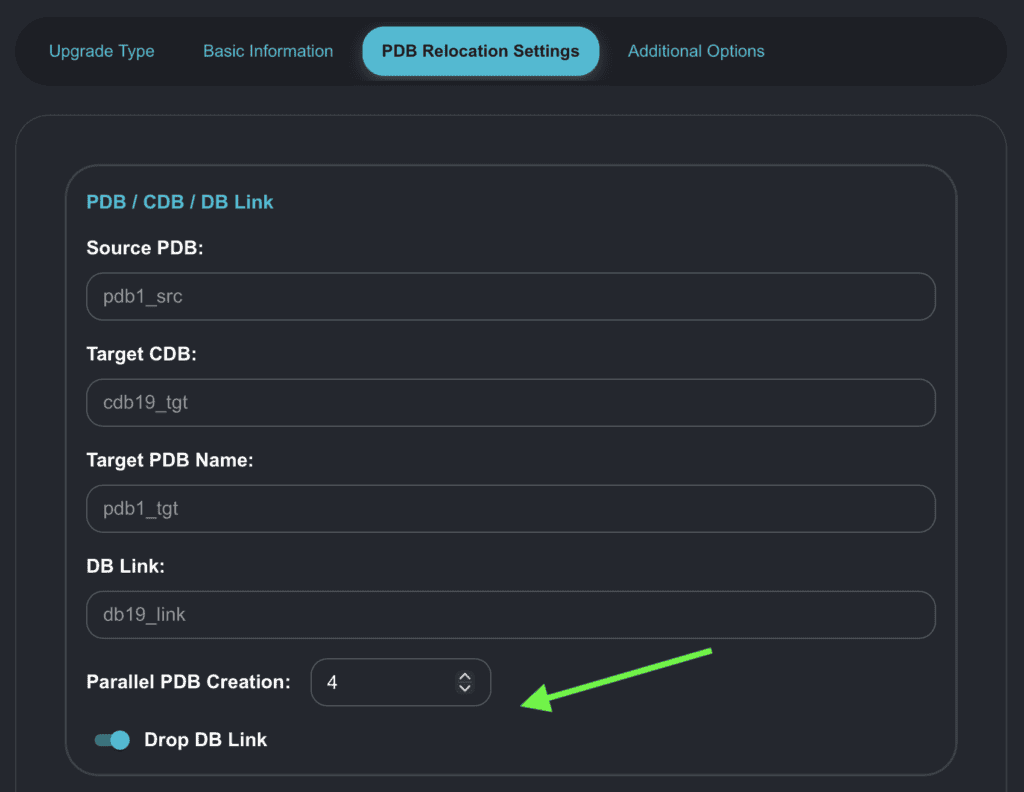
You can now select a number of parallel execution servers to use when creating a pluggable database. You can also select if you want to drop the DB Link once the PDB clone operation is completed.
If you select both, this is how the config file will look like:
v.26.2-8: Changed tune_setting=proactive_fixups
For the version v.26.2-8 I did a minor change in the Composer: changed the interface to not have the tune_setting=proactive_fixups=true by default.
Why?
- In AutoUpgrade, this parameter is false by default
You also need to consider the following when using this for example:
Where the PDBs are upgraded as the last stage of the upgrade. When the number of PDBs is higher than the CPU count defined in the database, divided by 2, choosing this tuning option can result in a faster upgrade.
If the number of CPUs is higher than the number of PDBs, then changing this setting may not improve performance.
Kind Request
I would like to kind request you to use the Validator in deep and let me know if you find any issues!
You can reach me at my LinkedIn profile: https://www.linkedin.com/in/viniciusdba/
Hope it helps!
Peace!
Vinicius
Leave a comment